

Buy a 60W USB-C cable if your device needs no more than 60W over USB Power Delivery. Choose a 240W-rated cable for a new purchase if you need more than 60W, then check the data rating separately. A 240W label does not tell you whether the cable can transfer files faster than an old USB 2.0 cable. Conversely, a high-speed data cable is not automatically the right cable for a power-hungry laptop.
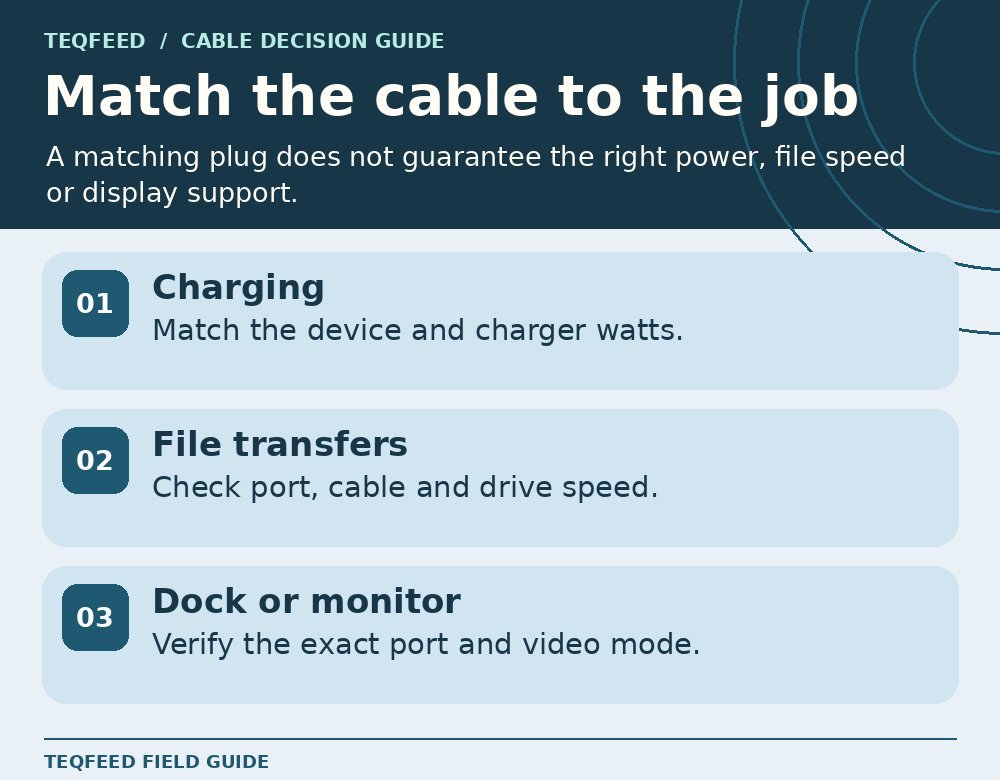
Quick answer: Shopping for one cable? Match the job first. For charging, check watts. For copying large files, check Gbps. For a dock or monitor, check display support as well.
What the 60W and 240W labels actually mean
The USB Implementers Forum’s cable certification guidance calls for 60W or 240W power markings on USB-C to USB-C cables in its compliance program. Those are cable ratings, not promises about what your laptop will draw. USB Power Delivery works within what the device, charger and cable support together. A 240W cable attached to a 45W charger cannot turn it into a 240W supply. A battery that is already nearly full may draw less than the device’s advertised maximum.
If your original laptop cable is marked 100W and reliably works with your 100W setup, you do not need to throw it out. For a replacement, the 240W rating is the straightforward choice under the current labelling system. For very high power, verify the charger and device actually support the needed USB Power Delivery profile; matching the shape of the plugs is not enough. The USB-IF’s Power Delivery announcement explains how the specification extended charging up to 240W.
Look for Gbps if you copy files or use a dock
For a portable SSD, find the data rate in the drive’s specifications, then match it to both your computer’s port and the cable. For example, a 10Gbps drive connected to a 10Gbps port through a 5Gbps cable cannot use the setup’s full 10Gbps signalling rate. On the flip side, swapping in an 80Gbps cable will not make that same drive faster than the port and drive allow. Real file transfers are slower than the advertised signalling rate, so do not treat a Gbps badge as a measured result.
USB-IF’s cable logo guide shows combined power and speed labels. USB 2.0 cables in the compliance program can carry a power mark without a speed number, so an unqualified wattage claim is not enough for an SSD purchase. If you are buying for a monitor or dock, check the manuals for the exact port, required cable and video mode. Display support is a separate question from whether a cable will power a laptop.
What I would buy for each job
Phone charging: a 60W cable is a practical default for a phone that charges at 60W or less over standard USB PD. If the phone advertises a proprietary fast-charging mode, check whether its manufacturer calls for a specific cable and charger. Laptop travel kit: buy a 240W cable if your charger and laptop can use more than 60W, and check the individual output rating if you plug several devices into the same charger. Work drive or dock: prioritise the documented speed and display compatibility first, then check the power label. If a listing is vague about those details, choose a better-documented cable.
Match the cable to the job before you buy
Charging a laptop and running a display through one dock? Find the wattage the dock can pass through to the laptop, not just the input rating of the power adapter. Then check the exact laptop port and the dock manual for video support. A cable can meet the power requirement while still being wrong for the monitor.
Replacing an SSD cable? Test the same large local file with the drive connected straight to the same computer port, first using the cable that shipped with the drive, then with the replacement. Keep the file and port the same. If only the replacement is consistently slower, check its data rating before replacing the drive or dock.
Buying for a shared desk? Label your charging-only cable and keep the documented full-featured cable at the dock. A charging indicator is not proof that the cable supports the speed or display mode you need.
Watch: USB cable certification: power and data markings
This CES interview with USB-IF president Jeff Ravencraft explains the markings. For purchasing, use the current USB-IF label guidance linked in the article.