


Quick Share is useful when you have a photo, video or PDF on your Android phone and need the actual file on a nearby Windows computer. You do not have to upload it to a drive first or send it to yourself in a chat. Start with one small file, confirm where it lands, then move the larger batch. The first transfer is also a quick way to check whether the visibility settings are right.
Quick answer: Start with one small, non-sensitive file. Confirm the Windows app detects your phone and you can find the received file before sending a whole photo folder.
Check which Windows app you need
Use Google’s Quick Share download page for a non-Samsung Windows PC. If the PC itself is made by Samsung, use Samsung’s Quick Share app from the Microsoft Store, linked on Google’s page. The brand of the phone does not decide which Windows app to install.
Google lists Android 6 or later and 64-bit Windows 10 or later; an ARM-based PC needs Windows 11 or later. On Windows, open Settings → System → About and check the system type if you are unsure whether the processor is ARM-based. Put the devices close together, turn on Bluetooth and connect both to the same network. Quick Share might still be labeled Nearby Share on the Android device. Google’s Android setup guide shows where to find the control.
Send a file from your phone to the PC
Open Quick Share on Windows and choose who can find the computer. If both devices belong to you and use the same Google Account, choose Your devices rather than making the PC visible to everyone. On the phone, open a file in your gallery or file manager, tap the share icon and select Quick Share. Tap the PC’s name. If a request or PIN appears, verify the sender and that the numbers match before accepting.
For Google’s Windows app, look in Downloads → Quick Share when the transfer finishes. Open the file from that folder rather than relying on the success notification alone. If you are copying files to clear room on the phone, check that the received version opens and is the one you meant to send before removing the original. To transfer in the other direction, open Quick Share on your PC and select or drop in the file, then choose the nearby Android device and accept on the phone if prompted.
If your devices cannot find each other
Start with visibility, not a reinstall. Leave the recipient awake and unlocked, confirm each side shows the account you expect, and check that neither is set to reject all incoming shares. If the PC appears but no request is shown, check Windows notifications for Quick Share and whether Do Not Disturb is hiding them.
If both are on the same office or guest Wi-Fi and discovery still fails, the network may block communication between devices. Try a trusted home network rather than changing managed network settings. If the hardware and network checks do not solve it, use Google’s Windows troubleshooting guide or use a USB data cable when you need the file immediately.
Test both directions before sending a big batch
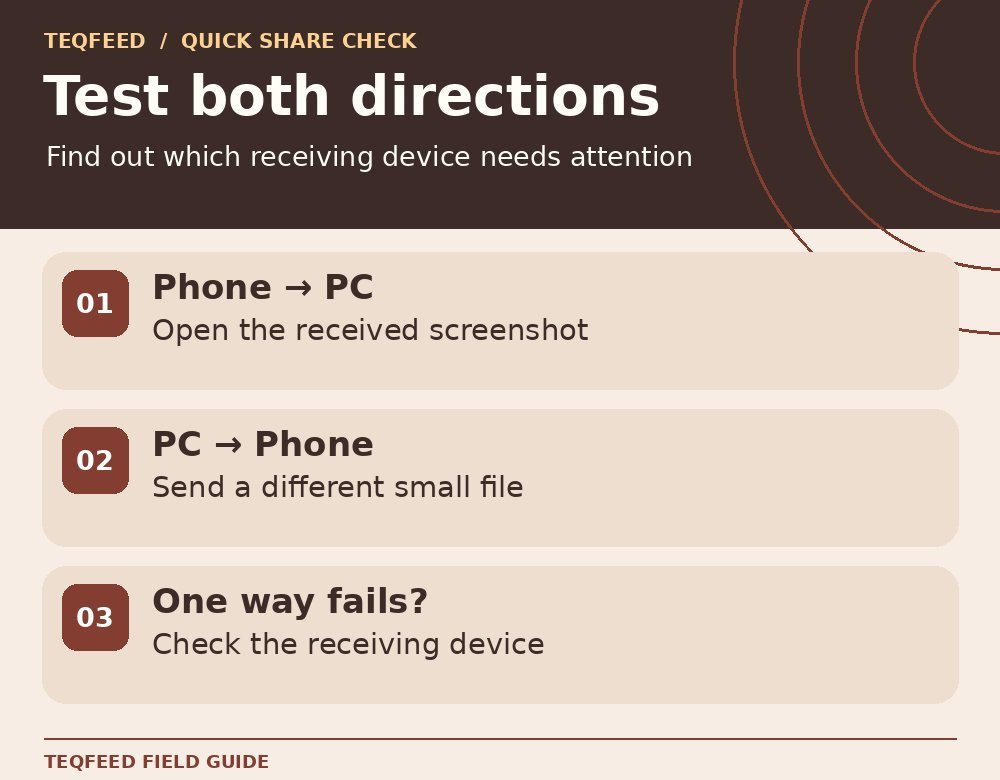
Treat Android → Windows and Windows → Android as two separate checks. Start with a disposable screenshot and make sure the Windows copy opens. Then pick a different non-sensitive file on Windows, send it back, and open it from the phone’s Files app. Using two different files makes it clear you are opening the received copy, not an original already on the device.
If only one direction works, check the receiving device for that direction. For example, if Android can send but cannot receive, check the phone’s visibility and keep it unlocked while you retry. If more than one laptop appears, compare its name in the Windows app settings before selecting it. Set visibility back to your preferred private option when the test is done.
Google’s Quick Share walkthrough has separate short demonstrations for Android → Windows and Windows → Android. Use the one that matches the direction giving you trouble.
Watch: How to Use Google Quick Share on PC & Android / File Transfer
An independent demo of moving files between an Android phone and a Windows PC. Use the official Android link above for the download and device requirements.