


A full Android phone and a full Google Account are different problems. Google Photos can remove copies stored on the phone while retaining the backed-up items online. That frees room for apps or camera recordings, but it does not lower your Google Account storage use. If you tap the regular trash button instead, you may remove the item from your online library too. Check the backup first, then choose the tool that matches the storage warning.
Quick answer: If the phone is out of space, verify the backup before removing local copies. If Google Account storage is out of space, removing local copies won’t fix the cloud quota.
Confirm the right photos are backed up
In Google Photos on Android, tap your profile picture and open Photos settings → Backup. Check the account listed there before turning backup on or waiting for uploads. This matters if you switch between a work account and a personal account: opening the app does not prove that your pictures went to the account you expected.
Look for Backup complete in the account panel, then check a few important items individually. Open a recent video or photo, open its information and look for its backup status. Also sign into Google Photos on the web with the same account and try opening those items there. That second check matters because the phone app can display files stored only on the device. For irreplaceable photos, consider keeping a second copy outside that account.
Screenshots, downloads and images from messaging apps can sit in separate folders. Look under Back up device folders and enable only the folders you want uploaded. Do not assume a finished camera upload covers every folder. Follow Google’s backup instructions if individual files still show as pending or the account is out of space.
Choose whether to remove a batch or one local copy
For a batch, open the profile menu and select Free up space on this device. Read the estimate and confirm only when you are ready to lose access to the removed copies in the phone’s built-in gallery or while offline. The images remain viewable in Google Photos online. The feature can leave some recent items on your phone, so a few photos remaining in the gallery do not necessarily mean it failed. See Google’s guide to freeing device space.
For one item you verified, open it, tap the More menu and select Delete from device. This is useful for a large video you rarely need offline. Do not substitute the regular Trash option if the goal is to keep your backed-up copy; Google documents these as separate actions.
What to do if Google Account storage is full instead
If the warning is about Google Account quota, freeing device space will not fix it. Use the Google Photos storage manager to see what is using that quota. Before deleting an item from the cloud to make space, make and verify another copy if you want to keep it. For example, back up a travel video to a computer and play it there before removing anything from Photos.
Check that the backup is the quality you need
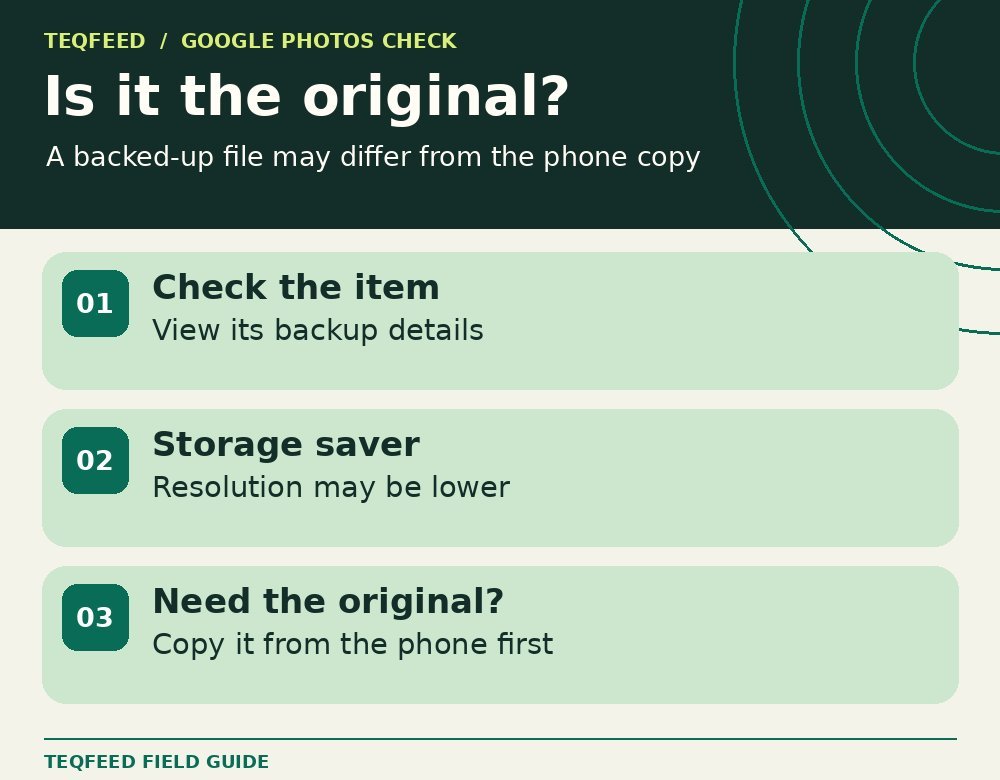
Seeing a video on the web confirms it is in your account. It does not tell you whether the copy is the same quality as the file on your phone. This matters for a 4K clip you plan to edit or a photo you want to print large. Open the item’s details in Google Photos and check the backup quality as well as the backup status.
Google’s backup quality guide explains that Storage saver can resize photos or videos, while Original quality retains the resolution and quality. If the phone holds the only full-quality copy you need, copy the original file directly to a computer or external drive first and open it there. Do not rely on a newly changed backup setting to prove an older upload is full quality.
If the problem is instead a full Google Account, the official Google Help video below covers online storage across Drive, Gmail and Photos. It is not a tutorial for removing only the copies on your phone.
Watch: What to do when cloud storage is full
This Google Help video covers Google Account storage across Drive, Gmail and Photos. It is not a demo of freeing space on your phone.