


An 80% charge limit makes sense if your iPhone spends hours on a charger or you routinely finish the day with plenty of battery left. If you’re already looking for a socket before dinner, try 90% or 95% first, or leave the limit at 100% with Optimized Battery Charging turned on. The goal is to reduce time spent fully charged without making your phone inconvenient to use.
Quick answer: If you finish a normal day with room to spare, try 80% on a couple of workdays. If you need to top up away from home, move the limit to 90% or 95% rather than trying to make 80% work.
Charge Limit and Optimized Battery Charging aren’t the same
On iPhone 15 and later, open Settings → Battery → Charging. Apple lists limits of 80%, 85%, 90%, 95% and 100%. Below 100%, the phone normally stops within a few percentage points of the chosen value. If the phone stays plugged in and its charge drops by more than five percentage points, it may resume charging toward the limit.
At the 100% setting, you can use Optimized Battery Charging. It sometimes pauses around 80% and finishes closer to the time it expects you to unplug. In other words, it changes when the phone fully charges, rather than setting a lower daily ceiling. On iPhone 14 and earlier, look under Settings → Battery → Battery Health & Charging for the optimized option.
A simple way to choose a limit
Look at where your battery usually ends up on a busy day, not a quiet one. If you normally start near full and finish around 40%, trying 80% could still leave enough for an unexpected errand. If you tend to finish near 15%, an 80% start may leave you short. Those are examples, not predictions: navigation, a weak signal, video and the condition of your battery can all change the result.
Try a setting for several normal days. If it works with your actual routine, keep it. If you’re repeatedly topping up just to get home, raise it one step and try again. For travel or a day away from power, there’s no need to make the lower setting permanent: Apple’s iPhone guide shows how to temporarily allow a full charge.
Why did it still charge to 100%?
An occasional full charge is expected even with a lower limit. Apple says this helps the phone keep its battery percentage estimate accurate. Conversely, a pause around 80% doesn’t automatically mean you turned on a charge limit. Optimized charging can cause a pause, and Apple’s charging troubleshooting guide notes that the phone may also limit charging when it gets too warm. Check the Battery screen and let a warm phone cool in a suitable location rather than assuming the cable is faulty.
There isn’t a universal payoff, in extra months or years, that Apple promises for choosing 80%. A lower limit is a practical habit if you don’t need the extra charge. Apple’s side-by-side explanation of the two charging features is the best reference if the menus or notifications are unclear.
Use the battery graph before blaming the limit
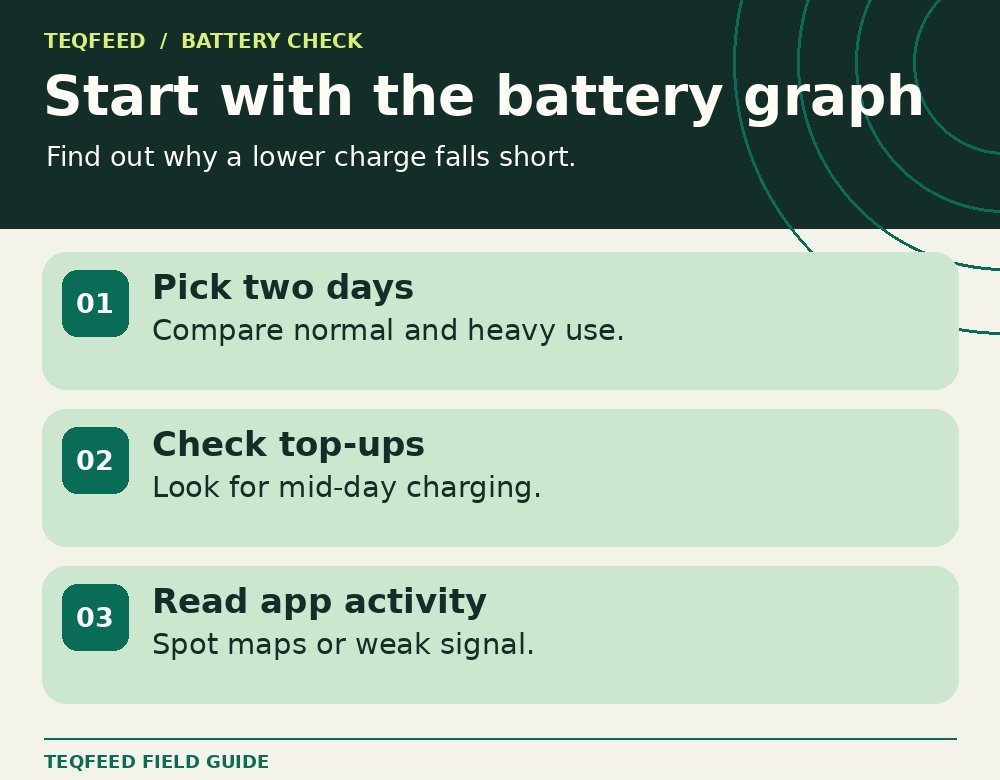
Open Settings → Battery and compare a normal day with one that ended close to empty. On recent iOS versions, tap View All Battery Usage and select a day. Look for a long navigation session, a day in weak cellular coverage or an app with unusual background activity. The Apple guide to Battery usage explains what the app activity labels mean.
Note any mid-day charge on the battery graph before comparing two days. A workday with a desk charger isn’t a fair comparison with a commute and several hours away from a socket. If those away-from-power days consistently leave you short, a higher daily limit is more useful than an 80% cap you constantly override.
A charging cap changes how full the battery is when you unplug; it doesn’t fix unusually high power use. If your phone still loses much more charge than usual even when starting near full, check Apple’s battery-drain guidance separately rather than chasing the charge-limit setting.
Watch: How To Limit iPhone Charging To 80%
An independent on-screen walkthrough of the Charge Limit slider on a supported iPhone. Apple Support remains the reference for model and iOS differences.