

Some Apple Intelligence tasks run entirely on your iPhone. Others can send information relevant to the request to Apple’s Private Cloud Compute servers. If your deciding factor is privacy or use without a connection, judge the specific feature you plan to use. An iPhone that supports Apple Intelligence is not a promise that every feature stays on the device.
Quick answer: To check your own device, turn on the Apple Intelligence Report, try one supported feature, and export the report. It shows requests sent to Private Cloud Compute; an empty report does not prove that no other service processed data.
On-device processing and Private Cloud Compute
Apple says its software determines whether a request can run on the device or needs a larger model. With on-device processing, the AI model works on the phone itself. With Private Cloud Compute, the request goes to a remote model. That distinction matters if you want a tool you can use in airplane mode or have a workplace policy that prohibits sending documents to an external service.
Apple’s Private Cloud Compute security requirements say user data is used only to answer the request and is not retained or made available to Apple staff. Its request-routing documentation describes how the device submits requests through a relay. Those safeguards are different from keeping the input on your iPhone. A separate app, website or external AI integration can also have its own rules; this description does not establish how those services process your data.
Will your iPhone get the feature you want?
This is particularly important when shopping for a used iPhone 15. Apple lists the iPhone 15 Pro and 15 Pro Max, but not the regular iPhone 15 or 15 Plus, among the models that support the current generation of Apple Intelligence. Before paying for an upgrade, read Apple’s current eligibility and feature lists for the exact phone and feature you want. System software, available storage, matched supported device and Siri languages, and region can matter. A supported phone also does not mean every cloud-backed feature is unlimited.
If you already have a supported iPhone, update it, verify the language and service settings, and try the feature with a harmless sample. For an offline check, turn off cellular and Wi-Fi after setup and repeat it with fresh local input. Success tells you that this particular task worked offline, not that every Apple Intelligence feature will.
How to check Private Cloud Compute activity
On a supported iPhone, open Settings → Privacy & Security → Apple Intelligence Report. Choose the reporting window, run the feature you want to inspect, then use Export Activity and open the exported report with a text reader. Apple’s iPhone guide lists a 15-minute window or a seven-day window. Use a fresh, non-sensitive sample for the check, rather than a confidential email or document. Keep the resulting report private if it has details you don’t want to share.
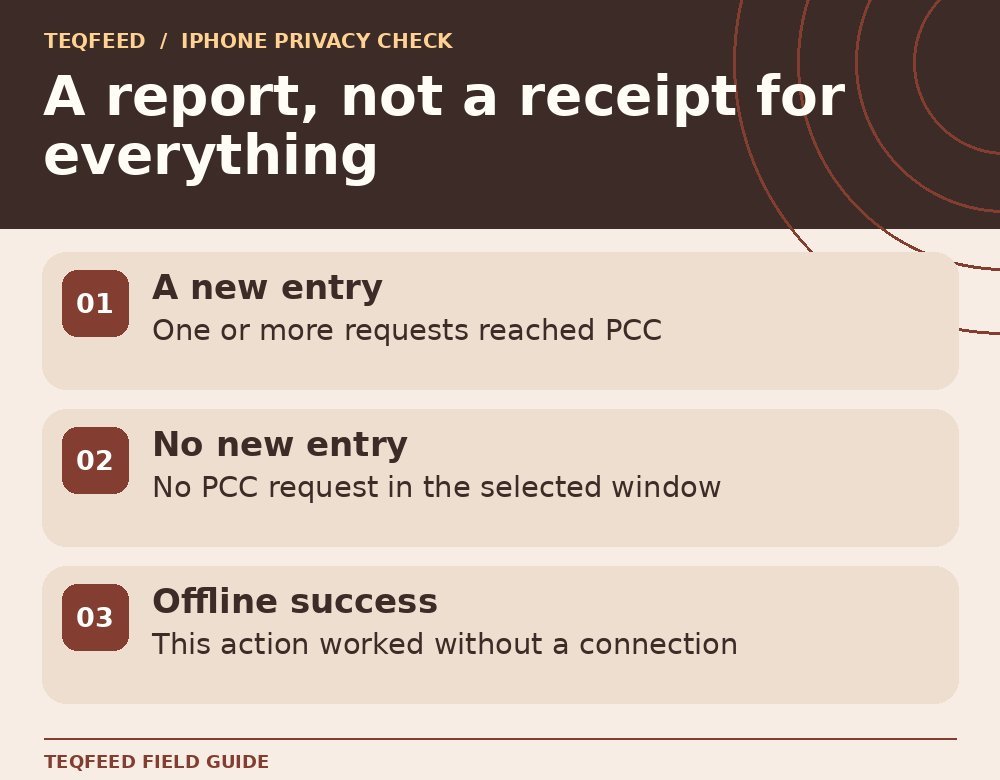
The report is for Private Cloud Compute requests, not a complete account of what every app on your phone sends over the internet. A blank report simply means it has no recorded requests to show for its selected window. If you’re deciding whether a tool is suitable for sensitive work, use the report as one check and verify the app’s own privacy documentation and your organisation’s policy before relying on it.
How to interpret what the iPhone report shows
To isolate one action: Pick the 15-minute window described in Apple’s iPhone guide, export a baseline, then run one feature with a harmless sample and export again. Avoid trying several AI features at once. A new report entry is evidence of Private Cloud Compute activity, not proof that the entire input went to a server.
If the report stays empty: Repeat the same workflow with different, local test input and both Wi-Fi and mobile data off. A fresh result gives you a separate, practical answer about offline use. If it fails offline, that alone does not prove Private Cloud Compute handled the online version; the app might need a connection to fetch the input or for another part of the workflow.
If this is for work: Distinguish “Apple does not retain the request data sent to Private Cloud Compute” from “the material never leaves the device.” If your employer requires the second, use an approved tool and do not treat an empty report as policy clearance.
Watch: Private Cloud Compute explained
In Apple’s developer session, start at 1:23 for Private Cloud Compute or 4:00 for the comparison with on-device models. It’s technical background, not an iPhone settings walkthrough.